
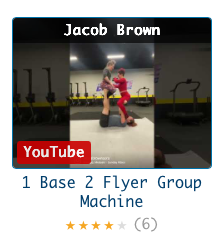
How to Read a Video Card
Every video in the library is displayed as a card. At a glance, each card tells you everything you need to know before you click — who made it, what platform it’s on, how difficult it is, what it’s called, and how the community rates it. Here’s a quick tour of what you’re looking at.
The Channel Name (Top Banner)
The dark banner across the top of the thumbnail shows the YouTube channel the video comes from. In the example above, that’s Jacob Brown — one of the most prolific AcroYoga creators in the library with over a thousand videos.
Use the All Channels filter dropdown to show only videos from a specific creator. It’s the fastest way to binge a particular teacher’s work.
The Thumbnail
The image in the middle is pulled directly from YouTube. It gives you a visual preview of the video’s content — the move, the setting, the style. Click the thumbnail and the video opens in a large player right on the page, no tab-switching required.
The Platform Badge (Bottom Left of Thumbnail)
The small coloured badge in the bottom-left corner of the thumbnail tells you where the video lives. YouTube appears in red. Instagram videos show a purple badge, and Facebook videos show blue.
Most videos in the library are YouTube, but we include great content from other platforms too.
The Level Badge
Just below the thumbnail you’ll see a coloured pill showing the video’s difficulty level:
- 🟢 Beginner — entry-level moves, great for new practitioners
- 🔵 Intermediate — requires some experience as base or flyer
- 🔴 Advanced — complex sequences and high-level technique
If a video hasn’t been tagged yet, no badge appears. Use the All Levels dropdown to filter the entire library by difficulty.
The Title
The video’s title appears below the level badge. Titles are truncated in the card view to keep things tidy — hover over the title to see the full name, description, level, and channel in a popup. Click the title to open the video’s dedicated page, where you’ll find the full details and an embedded player.
The Star Rating
The stars below the title show the community rating for that video — an average based on all the votes it’s received. The number in brackets is the total vote count.
In the example above, 10 Step Barrel Jacob Kaelyn has a rating of approximately 3.5 stars from 3 votes. The more votes a video collects, the more reliable its rating becomes.
You can rate any video yourself — just click the stars on the card or in the video player. You can only rate each video once, and your rating is remembered so you don’t accidentally vote twice.
Use the Any Rating dropdown to filter the library to only show videos above a certain star threshold — great for finding the community’s favourites quickly.
Edit and Delete (Registered Users Only)
If you’re logged in, two additional buttons appear at the bottom of each card:
Edit — opens the video’s edit page in a new tab. From there you can update the title, description, URL, level, category, and channel details.
Delete — permanently removes the video from the library. This action asks for confirmation first, but cannot be undone.
These buttons are only visible to registered users and are not shown to the general public.
That’s everything packed into one small card. The library has over 11,000 of them — now you know exactly how to read each one.